Platform
 W&B Models
 W&B Weave
 W&B Inference
 W&B Training
 Release Notes
wandb version 0.8.28, W&B can save the code from your main training file where you call wandb.init().
Save library code
When you enable code saving, W&B saves the code from the file that calledwandb.init(). To save additional library code, you have three options:
Call wandb.Run.log_code(".") after calling wandb.init()
Pass a settings object to wandb.init() with code_dir set
Set code saving in the UI
In addition to setting code saving programmatically, you can also toggle this feature in your W&B account Settings. Note that this will enable code saving for all teams associated with your account.By default, W&B disables code saving for all teams.
- Log in to your W&B account.
- Navigate to Settings > Privacy.
- Under Project and content security, toggle Disable default code saving on.
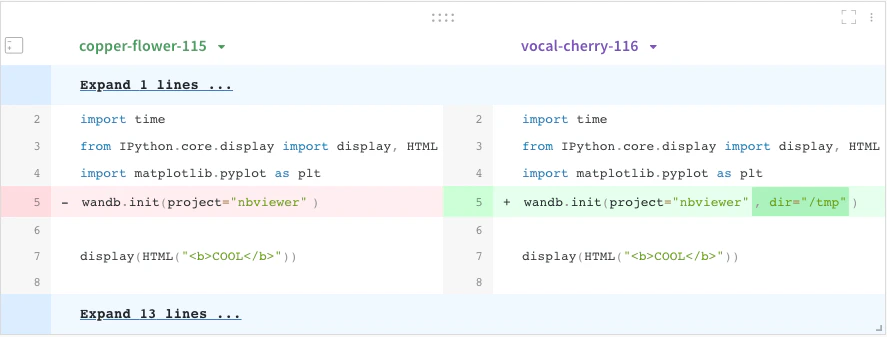
Code comparer
Compare code used in different W&B runs:- Select the Add panels button in the top right corner of the page.
- Expand TEXT AND CODE dropdown and select Code.
View unstaged changes
View unstaged changes in your project workspace.- Navigate to your project’s workspace.
- Select the Files tab.
- From the list of files, click on the
diff.patchfile. - Select a file from the list to expand the diff of unstaged changes for that file.
-
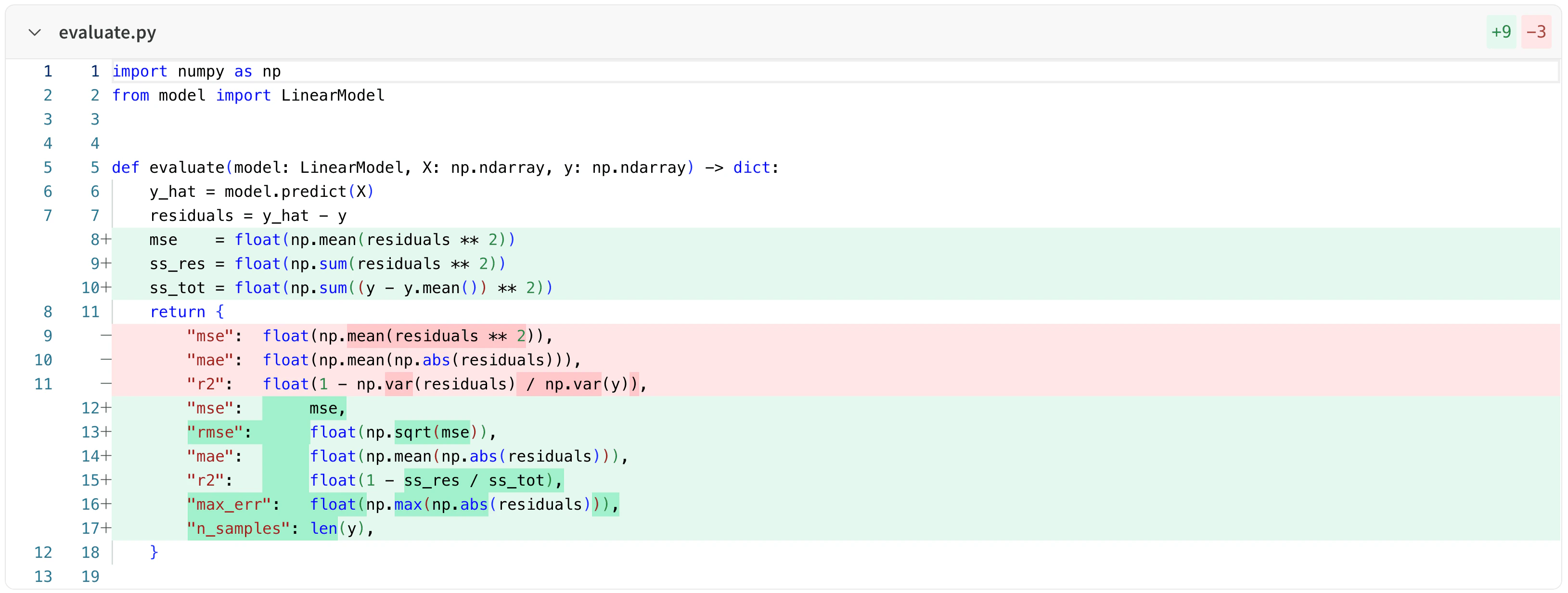
Unified view shows the diff of unstaged changes in a single pane:
-
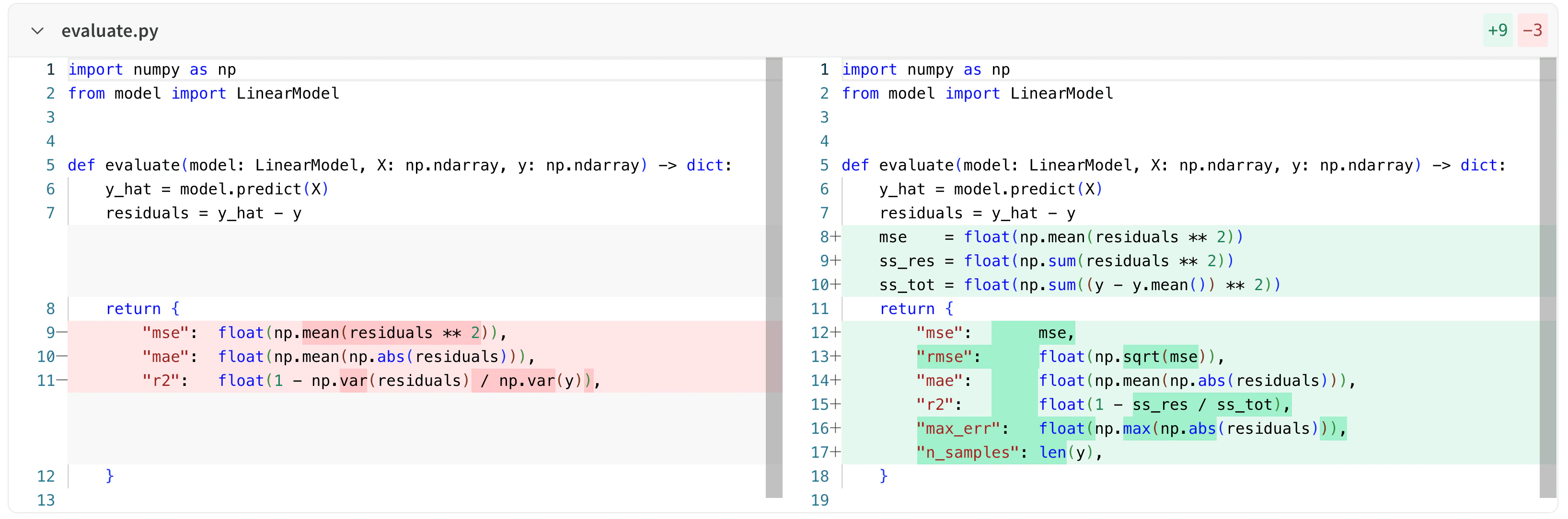
Split view shows the diff of unstaged changes in two panes side by side:
Jupyter session history
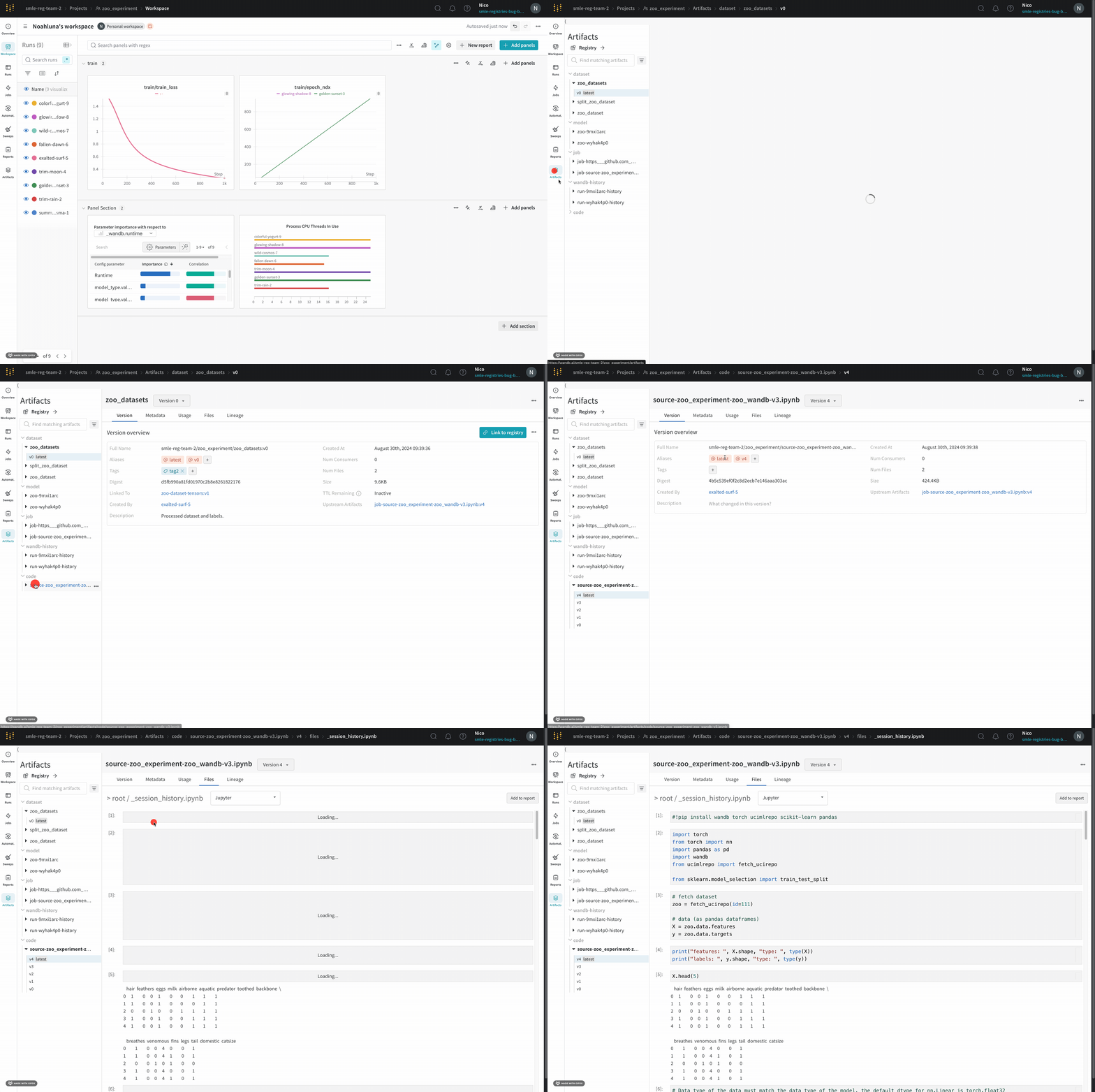
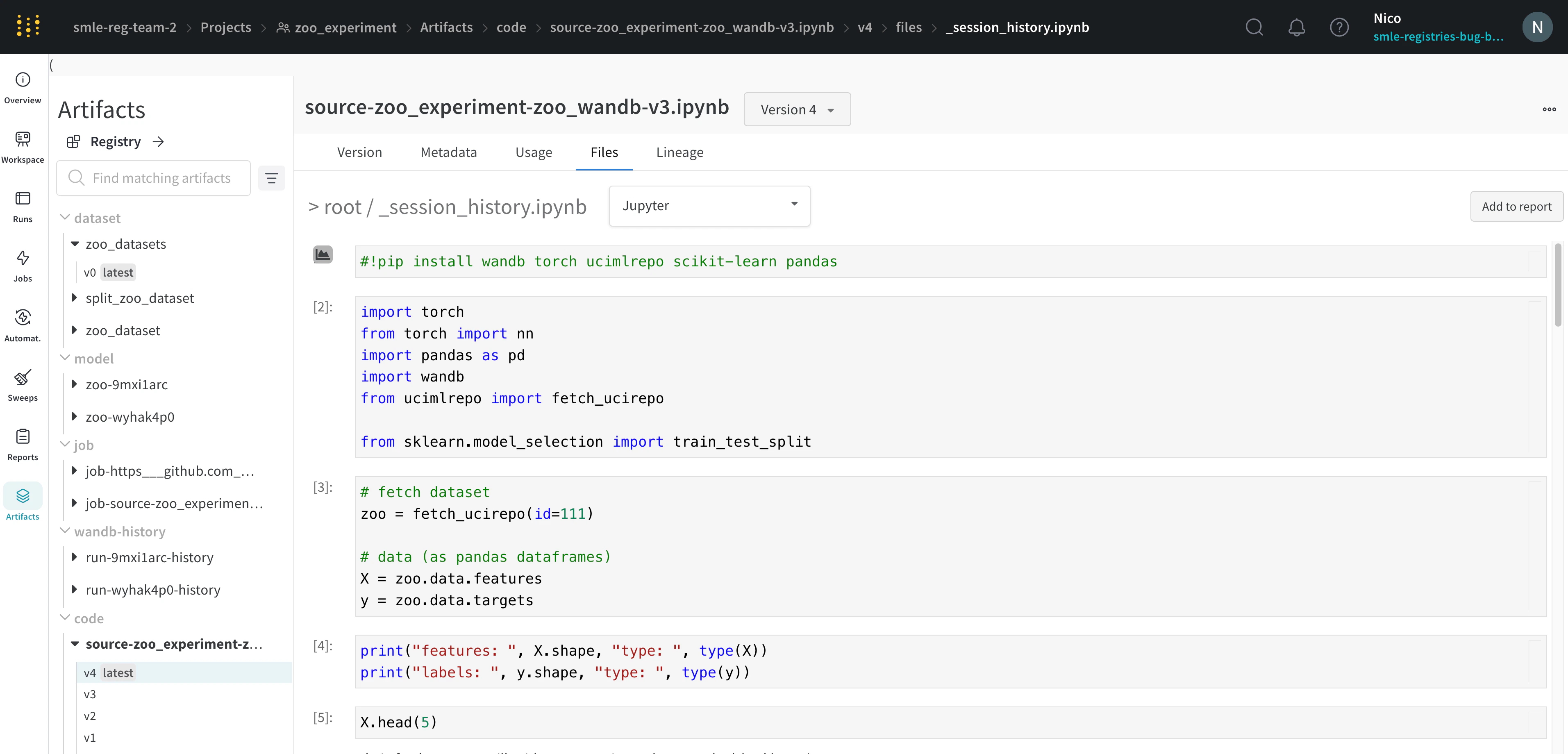
W&B saves the history of code executed in your Jupyter notebook session. When you call wandb.init() inside of Jupyter, W&B adds a hook to automatically save a Jupyter notebook containing the history of code executed in your current session.- Navigate to your project’s workspace that contains your code.
- Select the Artifacts tab in the project sidebar.
- Expand the code artifact.
- Select the Files tab.